Sup App
Sup is a social app centered around sharing what you cooked for dinner. Friends can connect, browse each other's meals, and exchange recipes. Brought on mid-development as the UX Designer, I joined a friend’s vibe-coded app that lacked intentional user experience design. I restructured the way users interact with and move through the app. My work has been exclusively focused on the human side of the product: how people think, navigate, and feel while using Sup.
*Sup is currently live in beta! All UX improvements I've designed have already been implemented and are active in the hands of real users.
Existing UX Analysis and Audit
Sup is a live beta iOS app meant for friends who love to cook! It’s a space to share what you made for dinner, see what your friends made for dinner, discover new recipes, and meal plan. The app was built by a solo developer using AI-generated code, which meant the core functionality was there, but the UX had never been touched by an actual designer.
I was brought on specifically to change that. My role was to audit the existing interface, identify the pain points, and replace those friction points with intuitive user-centered solutions. Several of my designs have already been reviewed, approved, and published to the live app.
Sup old screens
UX Audit: Onboarding Screen
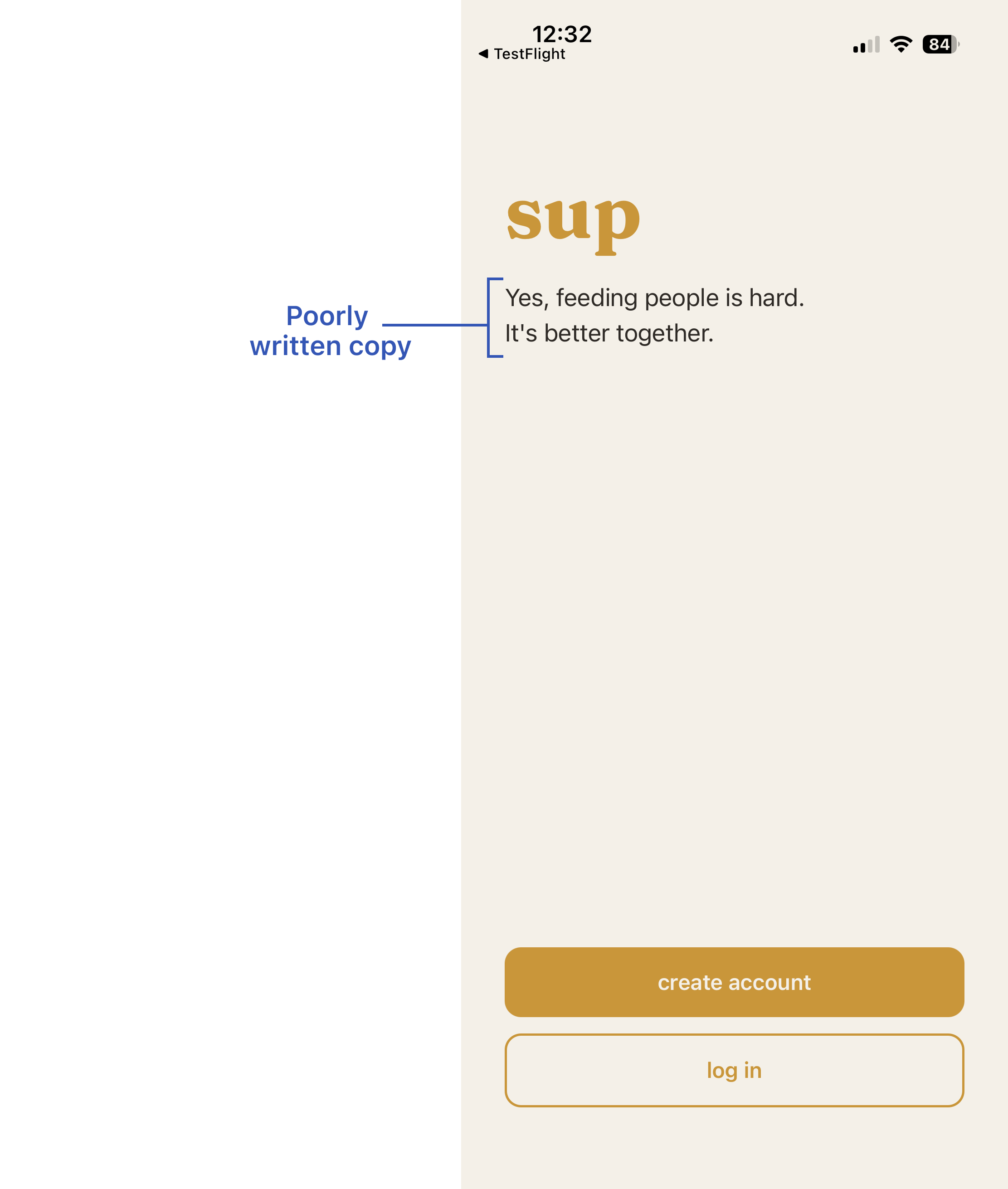
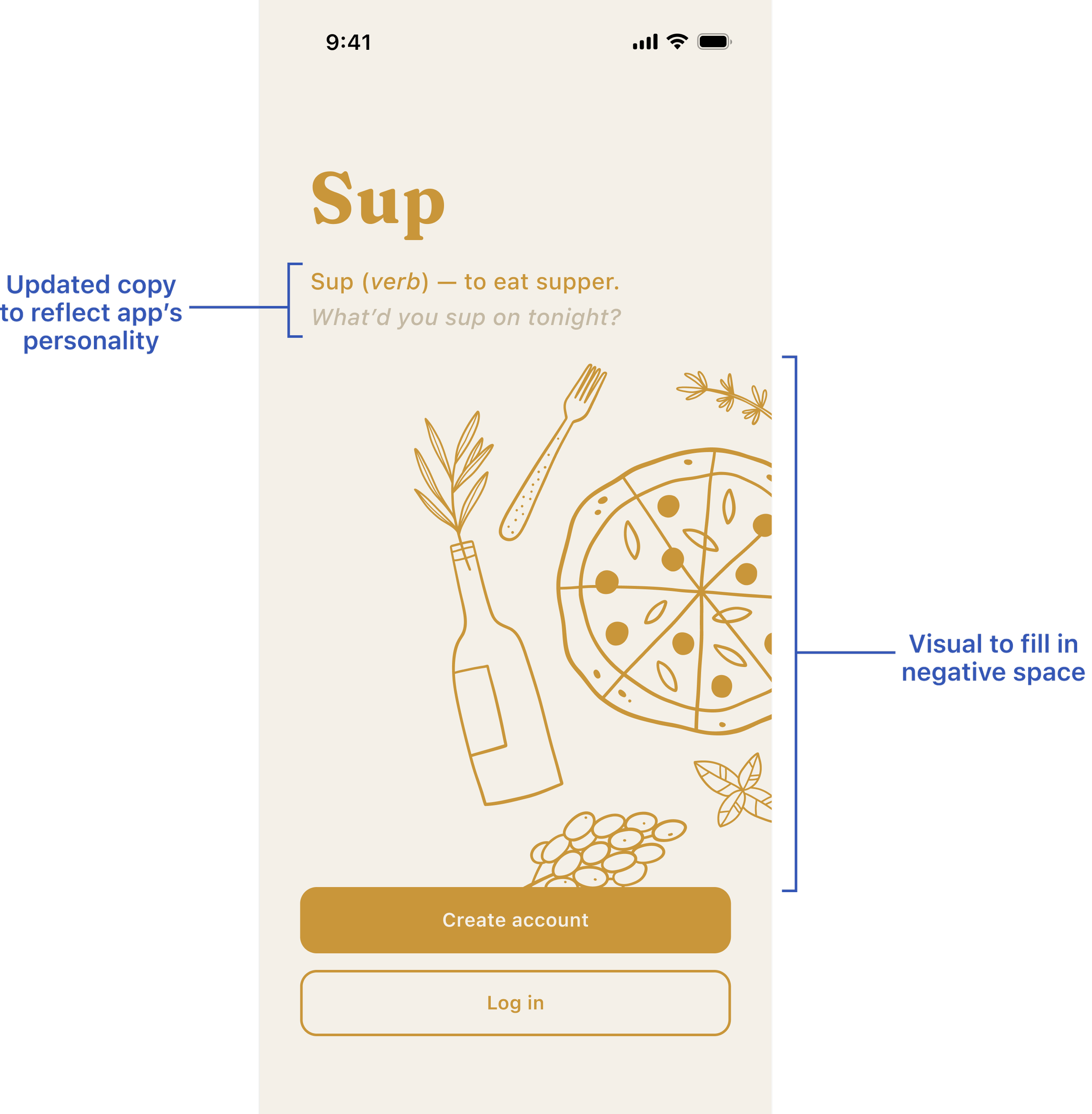
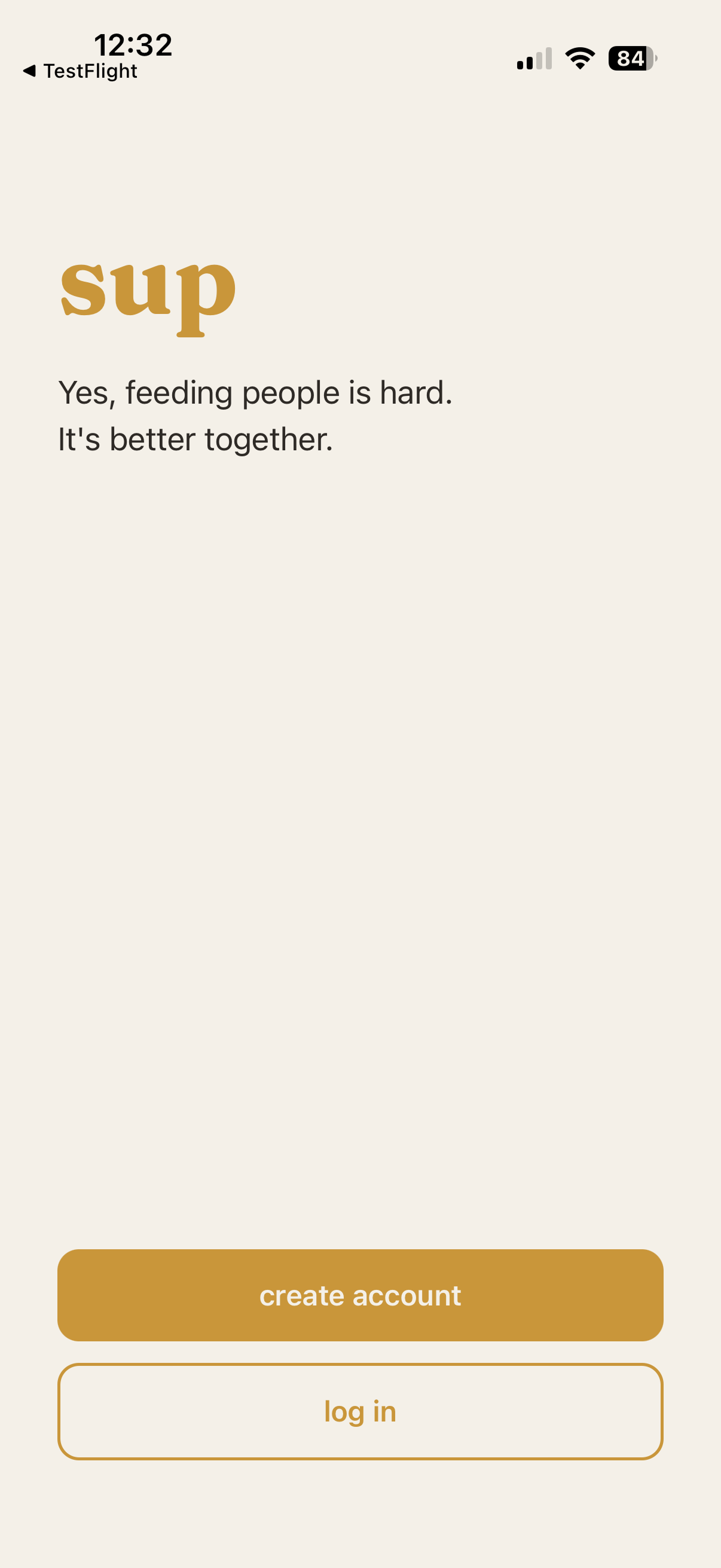
The first page that needed changes was the onboarding screen, where users create an account and are introduced to the app for the first time. My issue was with the copy: “Yes, feeding people is hard. It’s better together.” Those two lines being an acknowledgement of struggle, and the term “feeding people” carrying a utilitarian obligation was not doing favors for the app.
The opening screen should be inviting, and also communicate the personality of the app. “It’s better together” is so generic it could be the tagline for any social media app. There is a lot of psychology involved in UX, and it comes across strongly in the text.
Sup old onboarding screen
UX Audit: Home Feed Posts
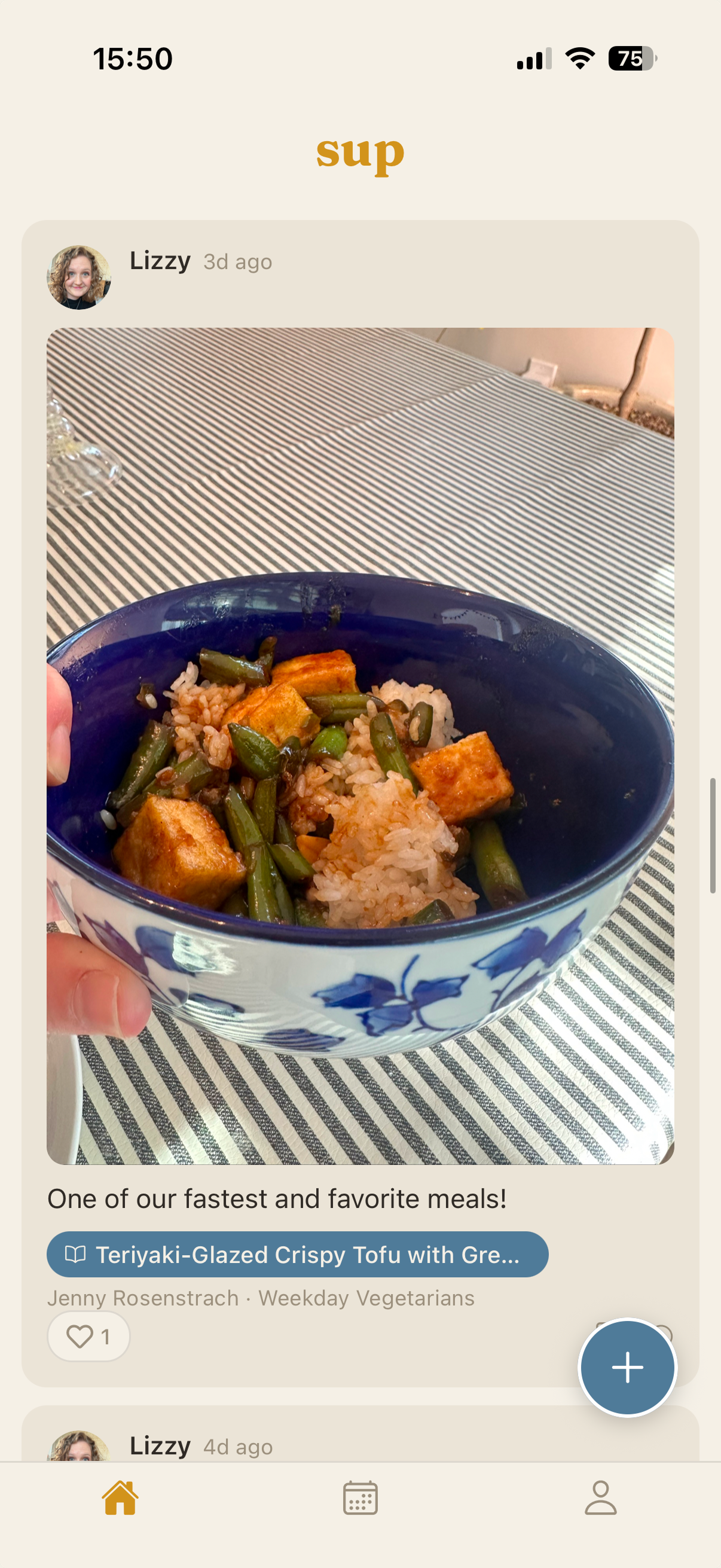
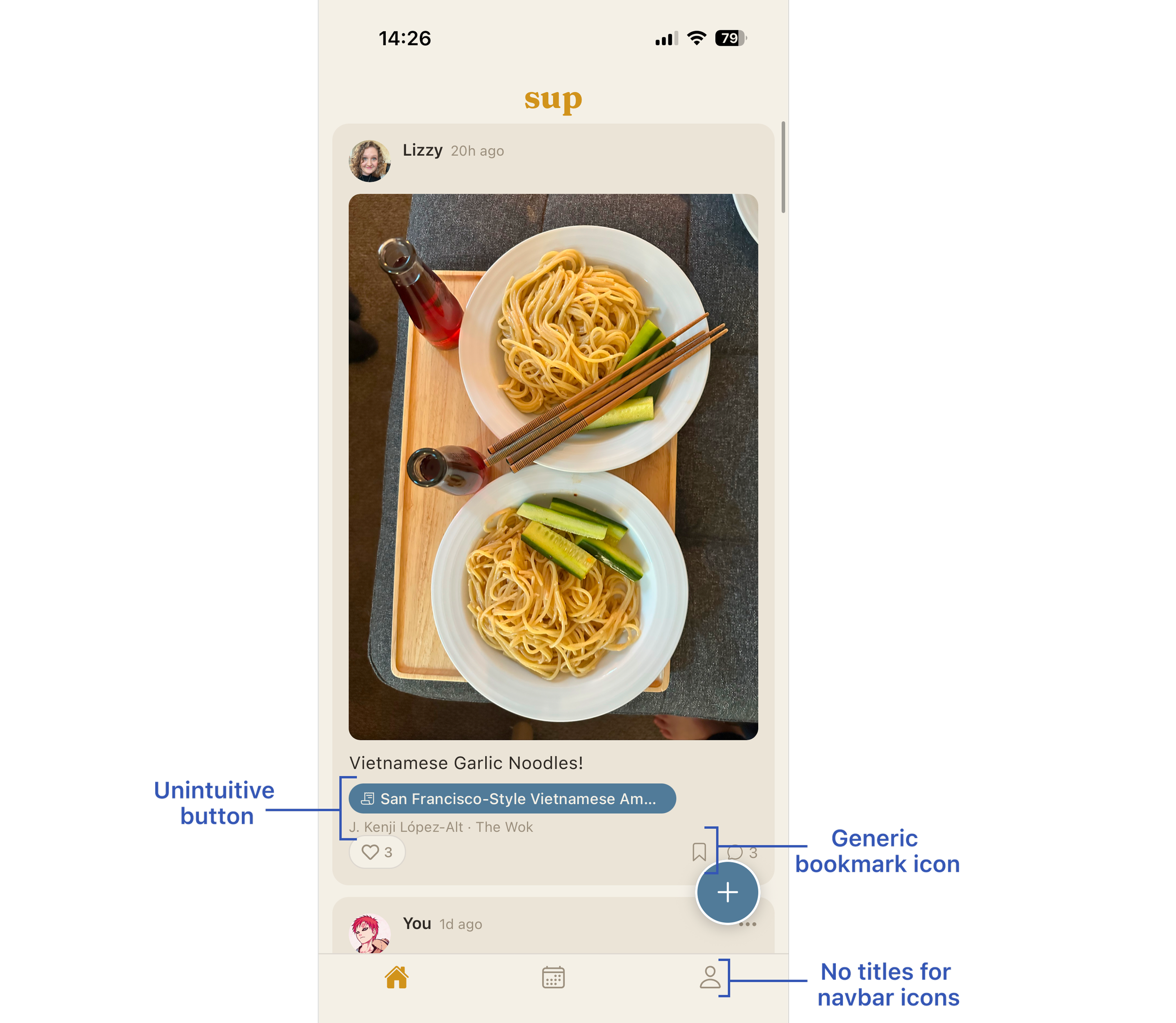
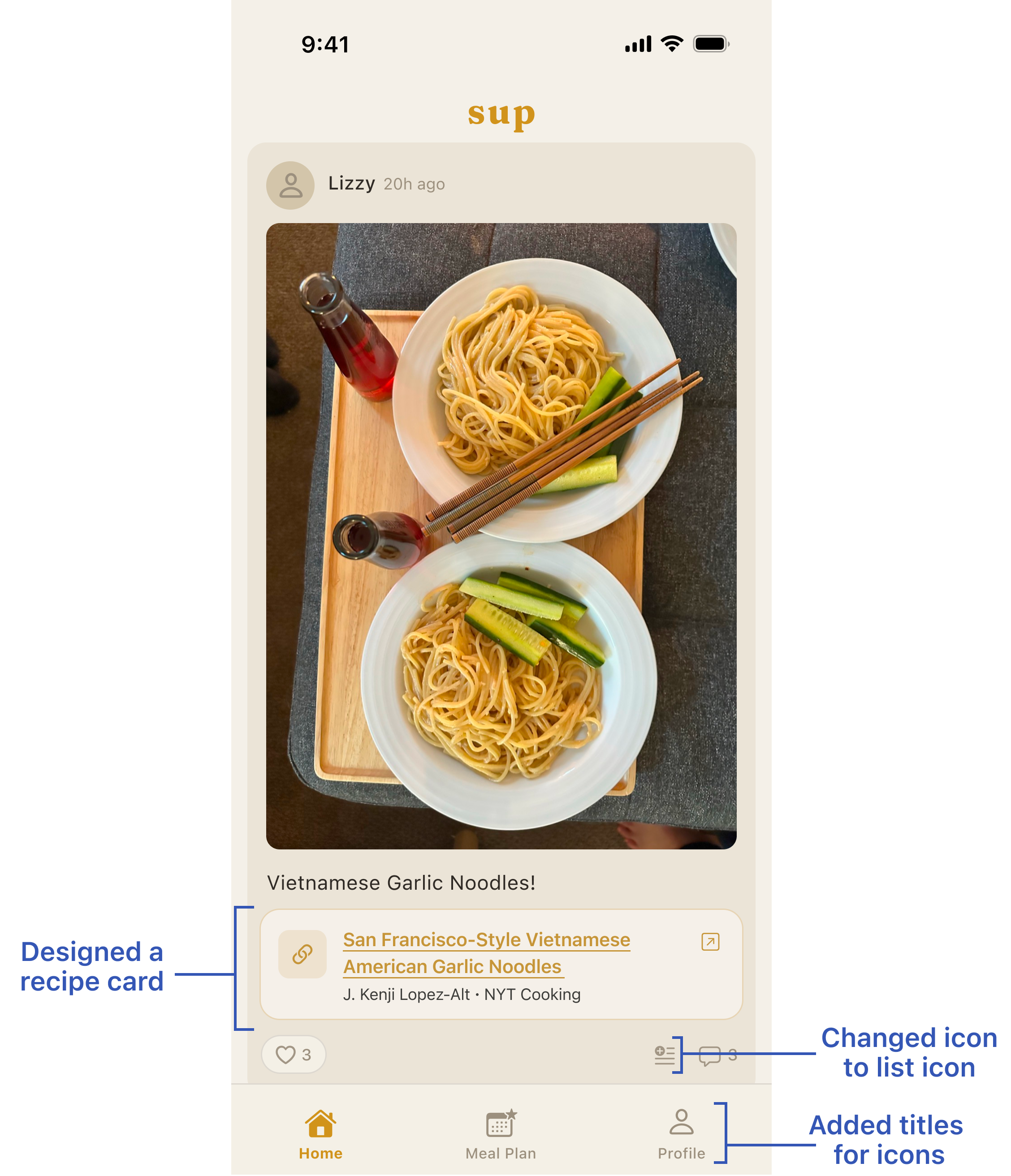
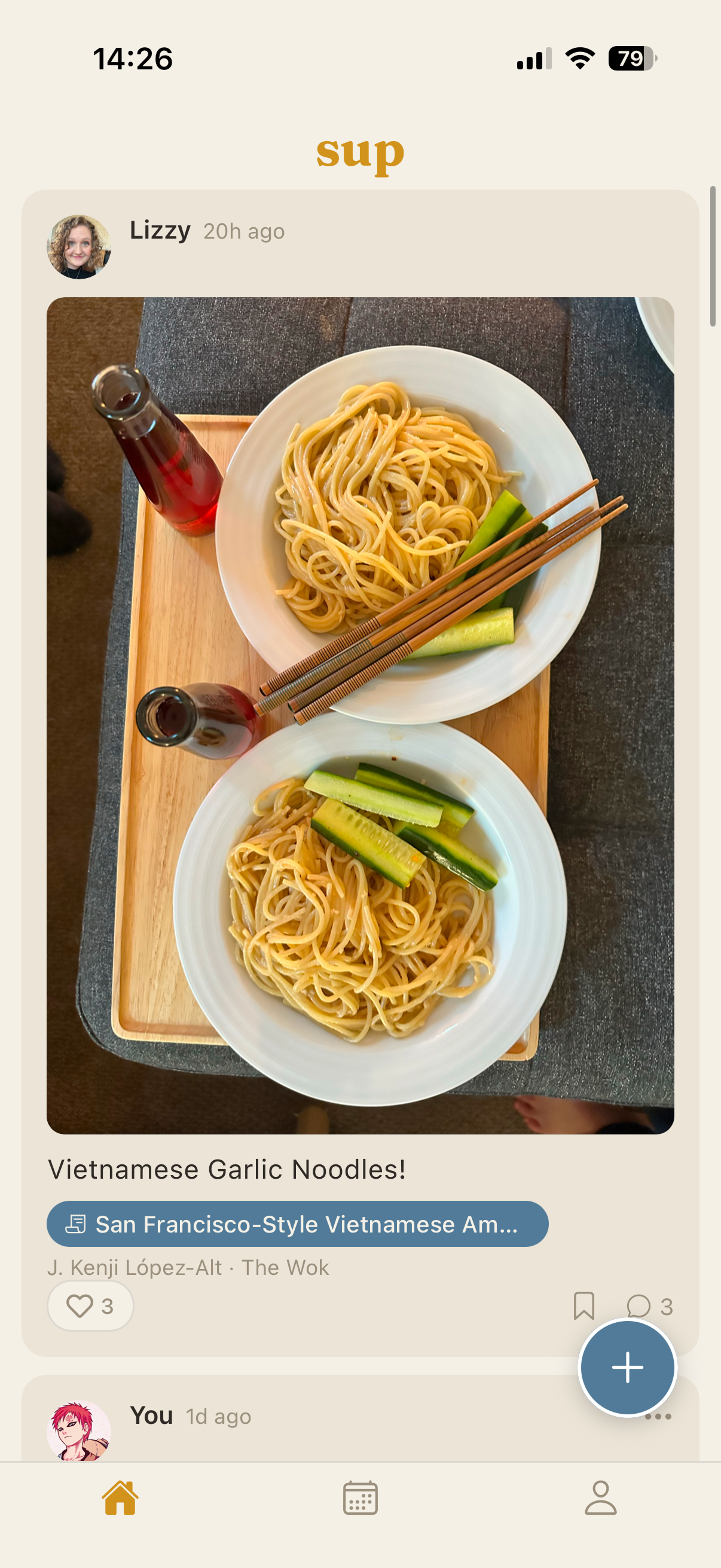
The main issue with the posts on the home feed was how the recipe was attached. The fact that the name of the recipe was cut off, and that the author metadata was sitting outside of the pillbox told me that a pillbox was not the right container to convey the recipe information.
Beyond just that, one of the most prominent actions a user can take on this app is to save recipes and use them later. But that is different from simply bookmarking something to return to it at some point later.
Lastly, the navbar didn’t have titles for the icons. This works for some apps such as Instagram and Pinterest because their icons are universally understood. But the calendar icon in the navbar here is ambiguous, which makes the entire untitled navbar fall apart.
Old home feed post layout
UX Audit: Creating a Post
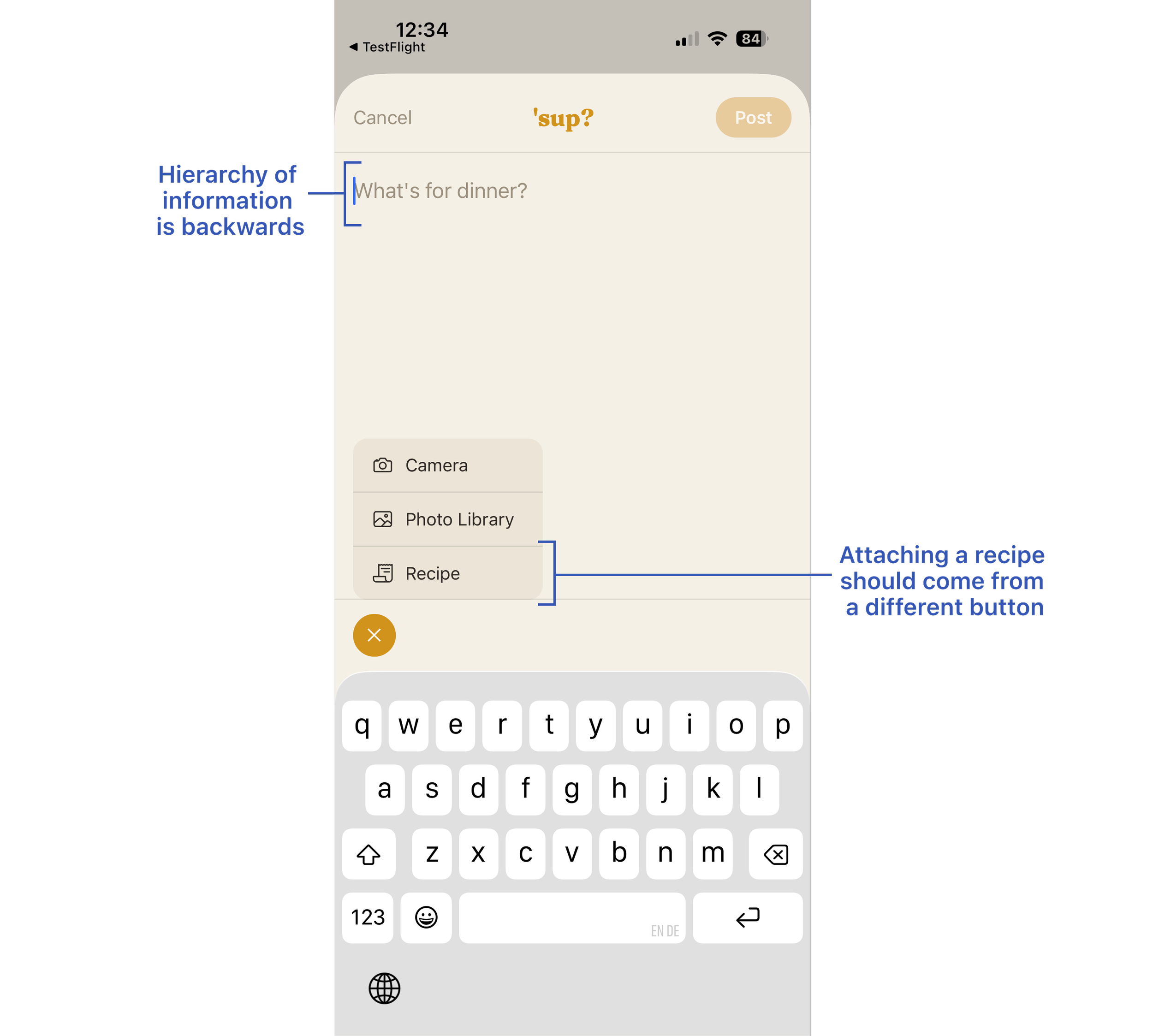
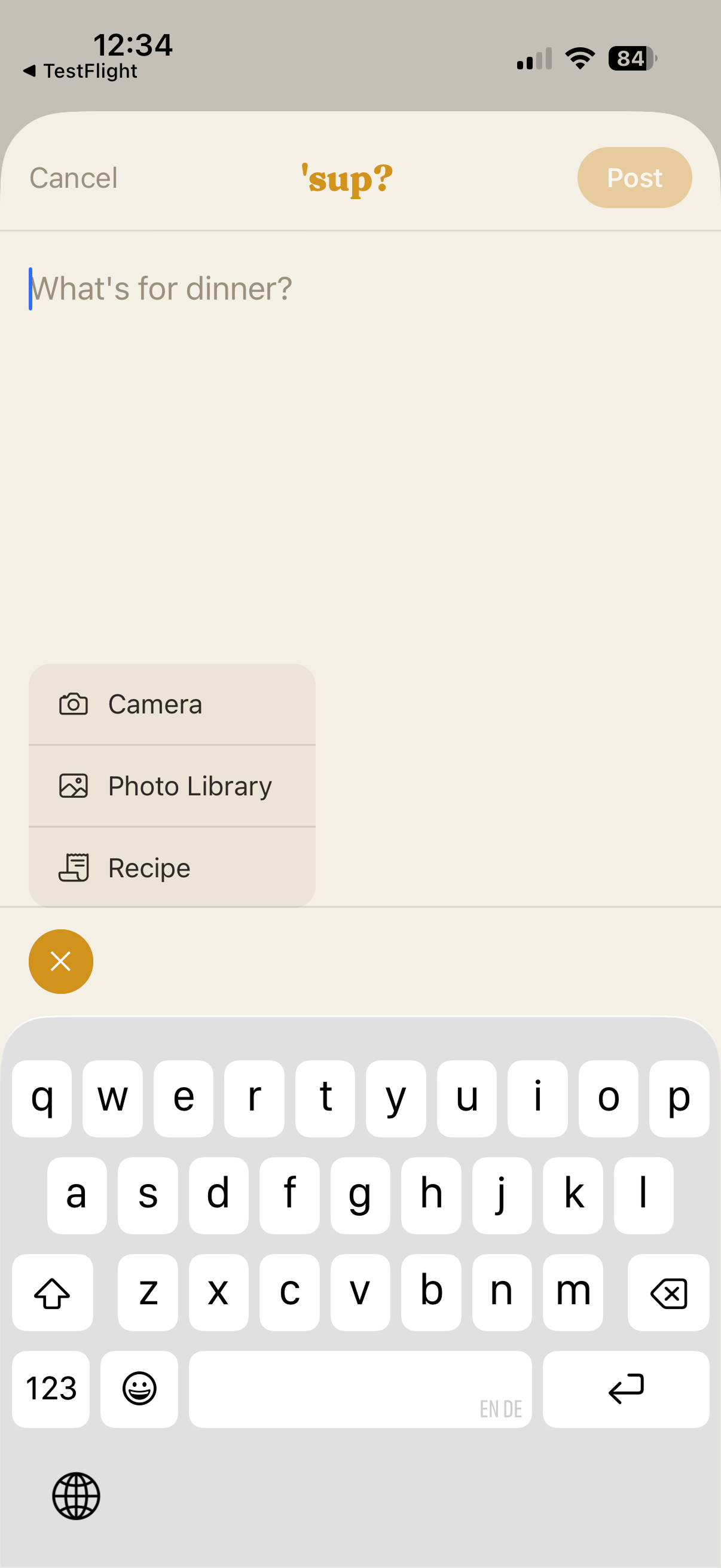
The post composer had some hierarchy issues: when the user wants to make a post, they are asked to first caption their post, which implies that the caption field is the primary content of the post. But the photo of the meal should be the anchor of the post, with the caption being supplementary context. The old layout had the hierarchy inverted.
Also, attaching a photo, taking a photo, and attaching a recipe are fundamentally different things. They should not stem from the same button; instead, there should be a button for the photos and a separate button for attaching a recipe.
Sup old creating a post screen
UX Audit: Attaching a Recipe
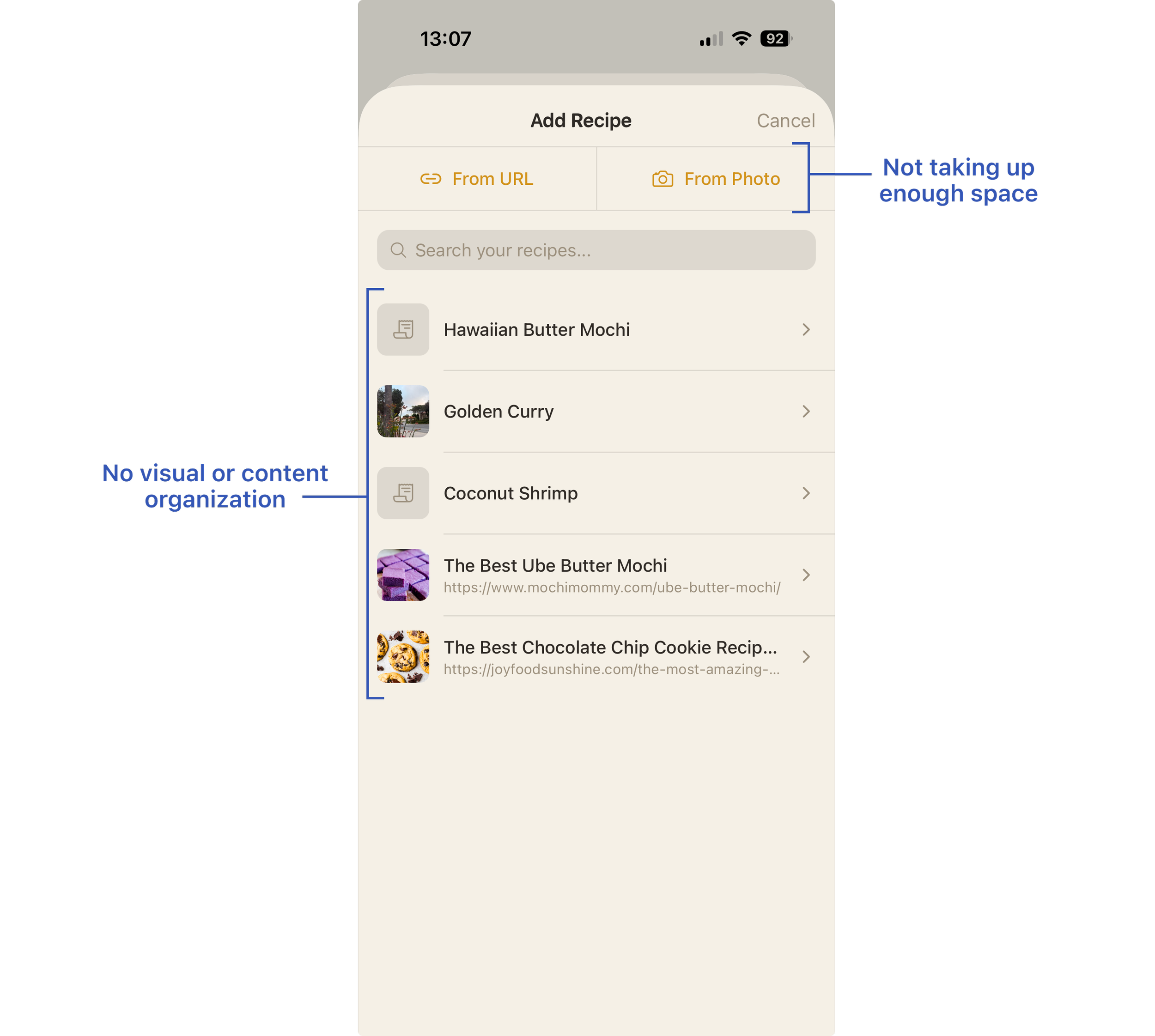
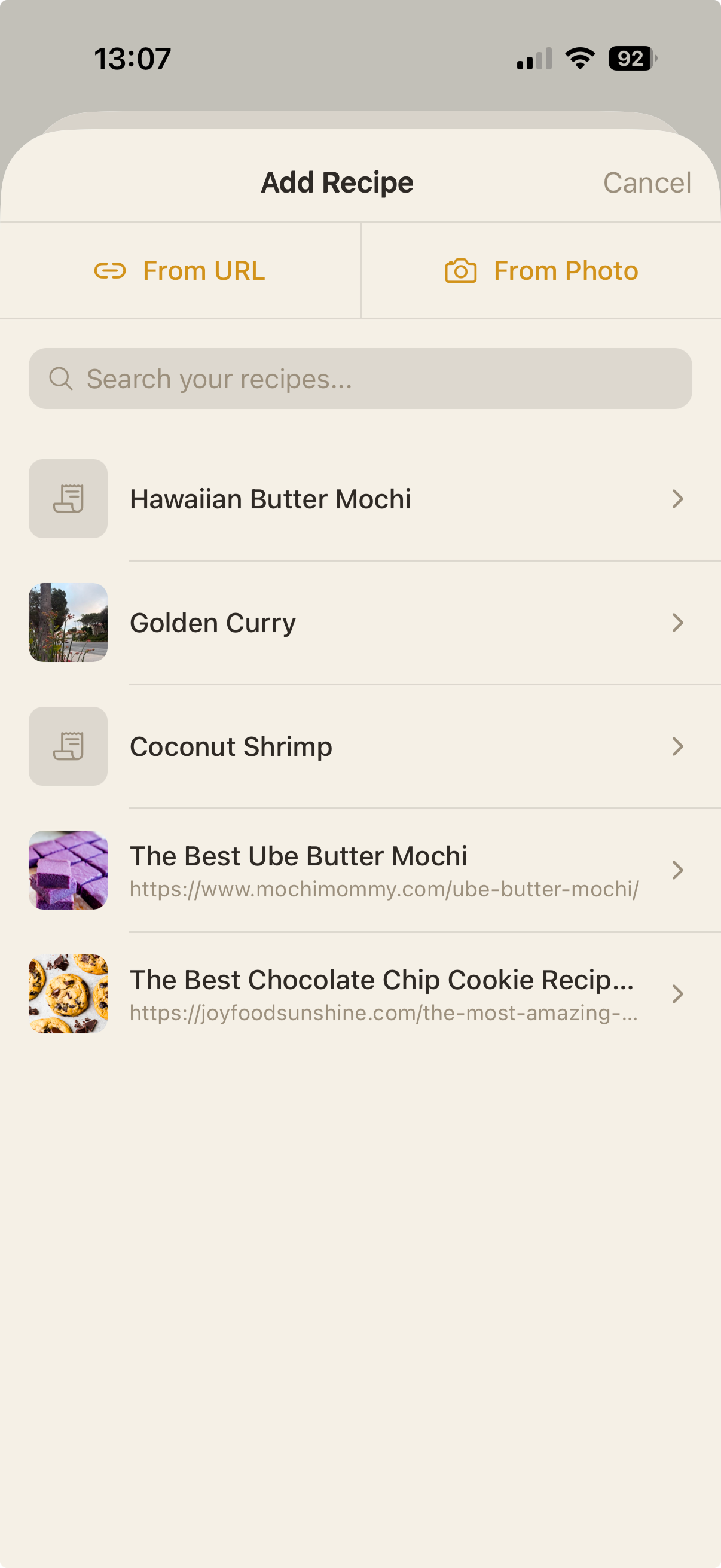
When it came to attaching a recipe, spacing was an issue. The options to attach a recipe through a URL or from a photo were quietly tucked away at the very top of the dialog, despite those two being pretty important actions.
If the user wasn’t going to attach the recipe via URL or photo, they would select a repeat recipe from their previously used recipes. But those recipes were organized in order of most recently attached, meaning there was no form of organization or hierarchy anywhere. On top of the list not following any rules, the full URL underneath the recipe name was noisy and hard to scan, and the thumbnail inconsistency was a little jarring.
Old attach recipe screen
Proposed Solutions With Design Rationale:
Onboarding Screen Solution
Old onboarding screen
New onboarding screen
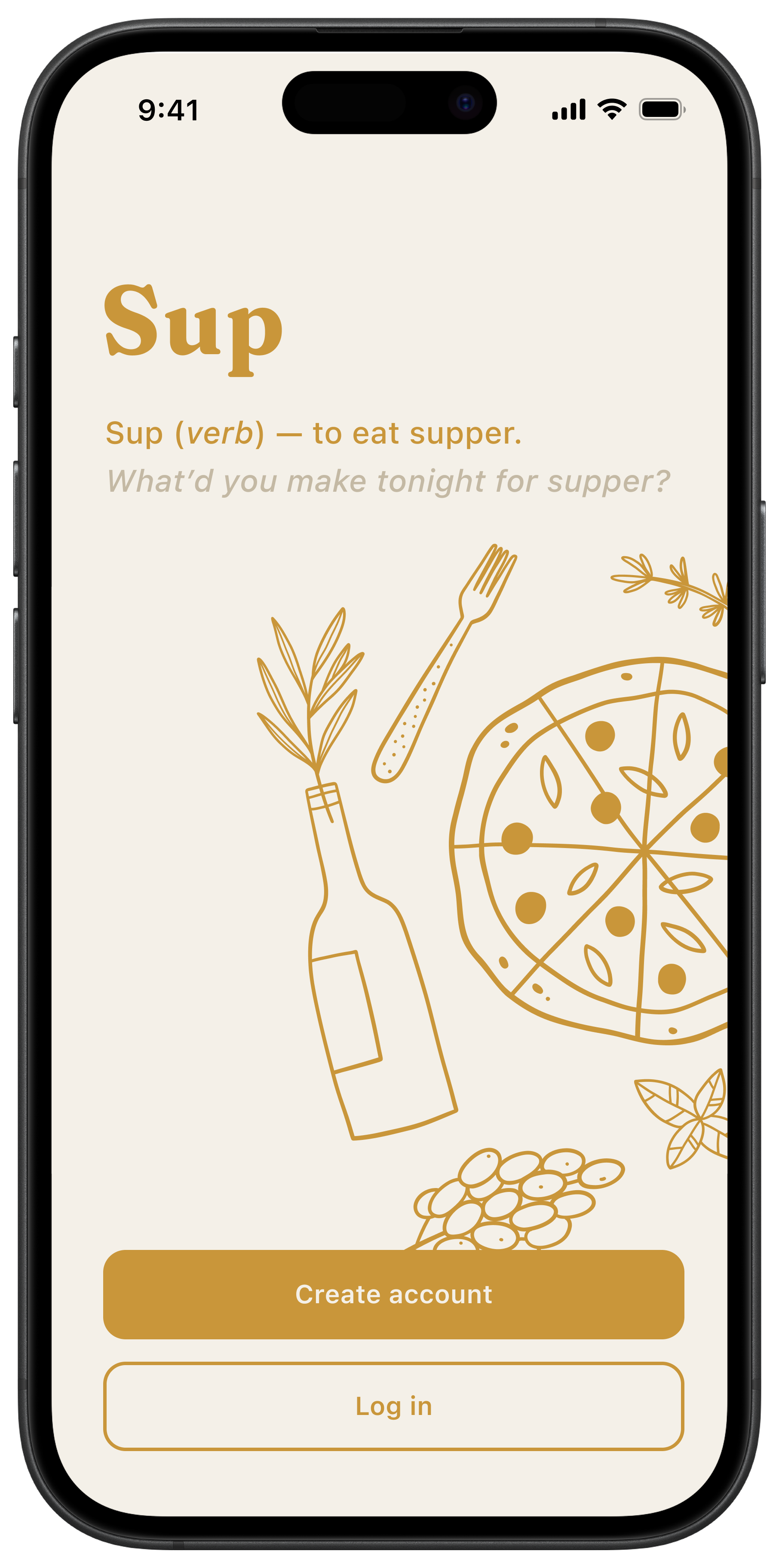
When redesigning the onboarding screen, I wondered if the wordplay on the word Sup would get lost on people, and if users might not realize it’s not just asking you What’s up?, Sup is also the old word for eating dinner. I traded out the old copy for the dictionary definition for the word Sup, as well as a sample sentence that conveys the purpose of the app: to share what you had for dinner.
There was also a lot of white space not being utilized well, so I added in some welcoming food imagery to balance out the composition.
Home Feed Screen Solution
Old home feed screen
New home feed screen
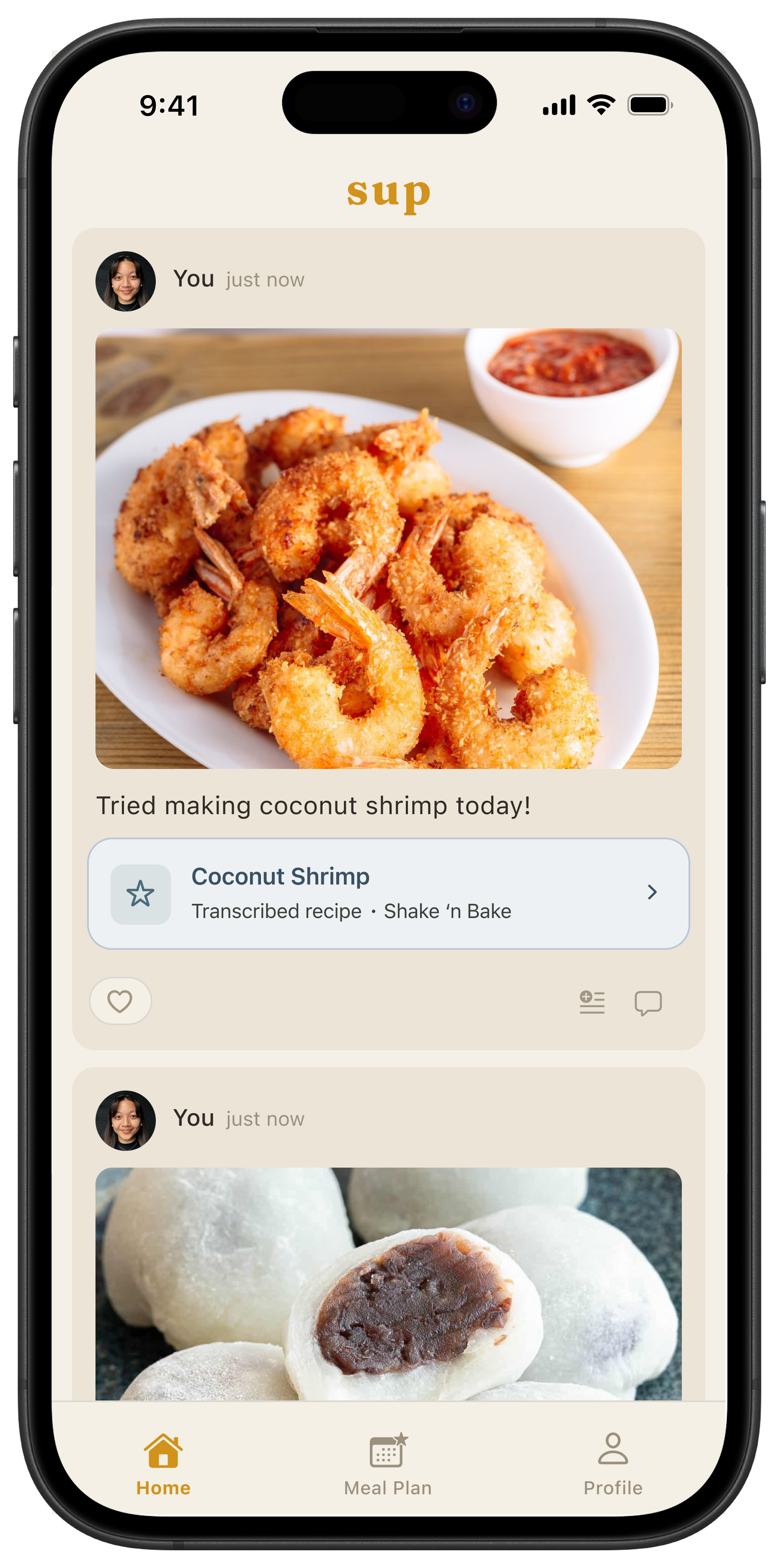
In the new home feed screen, the burdened pillbox that was tasked with holding too much information got turned into a card that could fit the full title of the recipe, as well as the author name and source at the bottom. There is no more confusion about what it is. It is a container for the recipe, as well as a link to the external link.
I swapped out the bookmark icon for a icon that communicates you are adding something to a list; in this case, a recipe to your ‘want to make’ list. Furthermore, I added titles to the icons in the navbar so there is absolutely no confusion about what the middle tab is.
Making a Post Screen Solution
Old post composer screen
New post composer screen
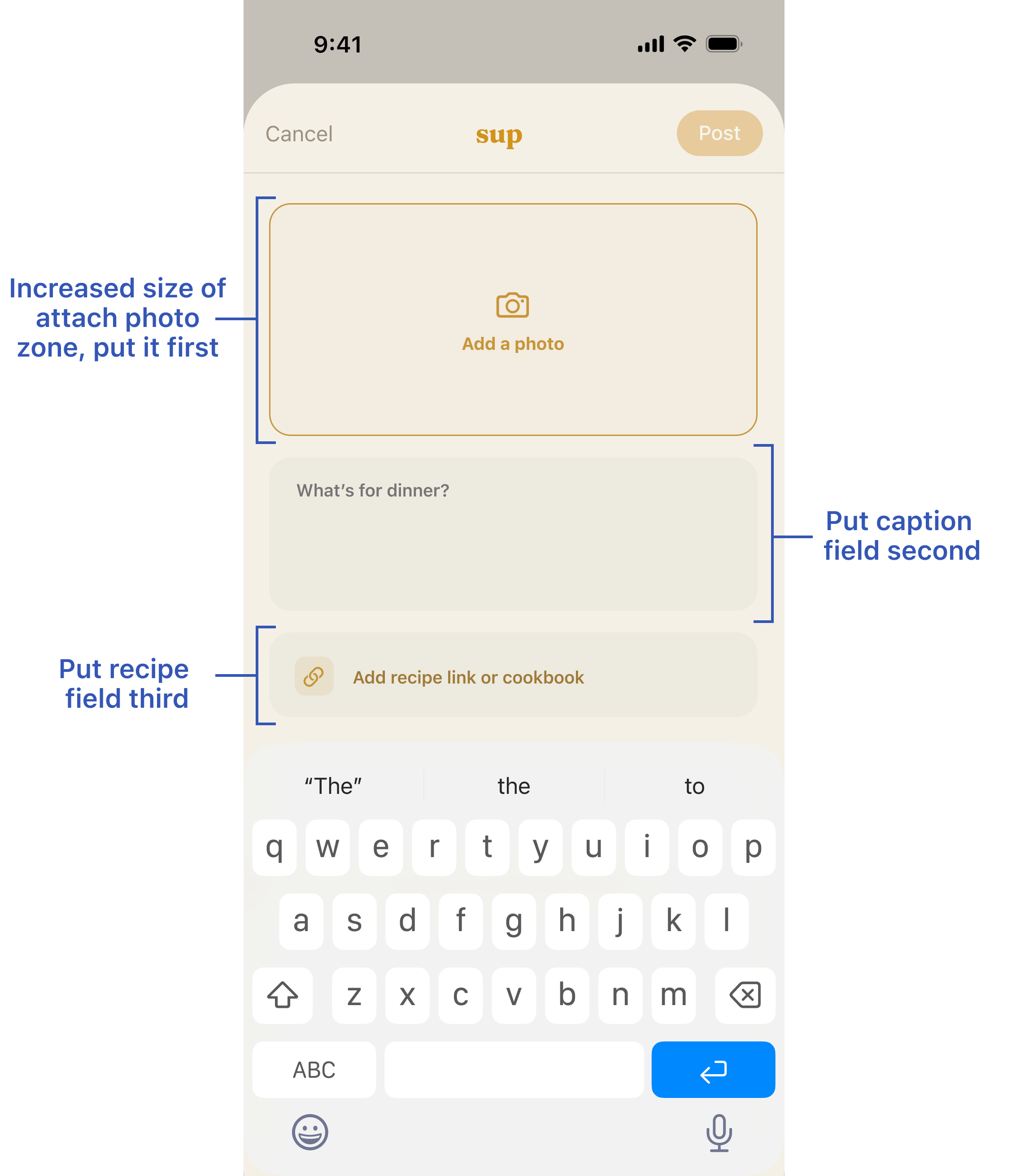
I switched the order in which the user inputs information so that the photo comes first, the caption second, and the recipe link last. This is to reinforce that the posts in this app are to show off what you made for dinner, and attaching the photo first will help the user write the caption. The sizes of each input field also correspond to the new hierarchy system I created.
Attaching a Recipe Screen Solution
Old attach recipe screen
New attach recipe screen
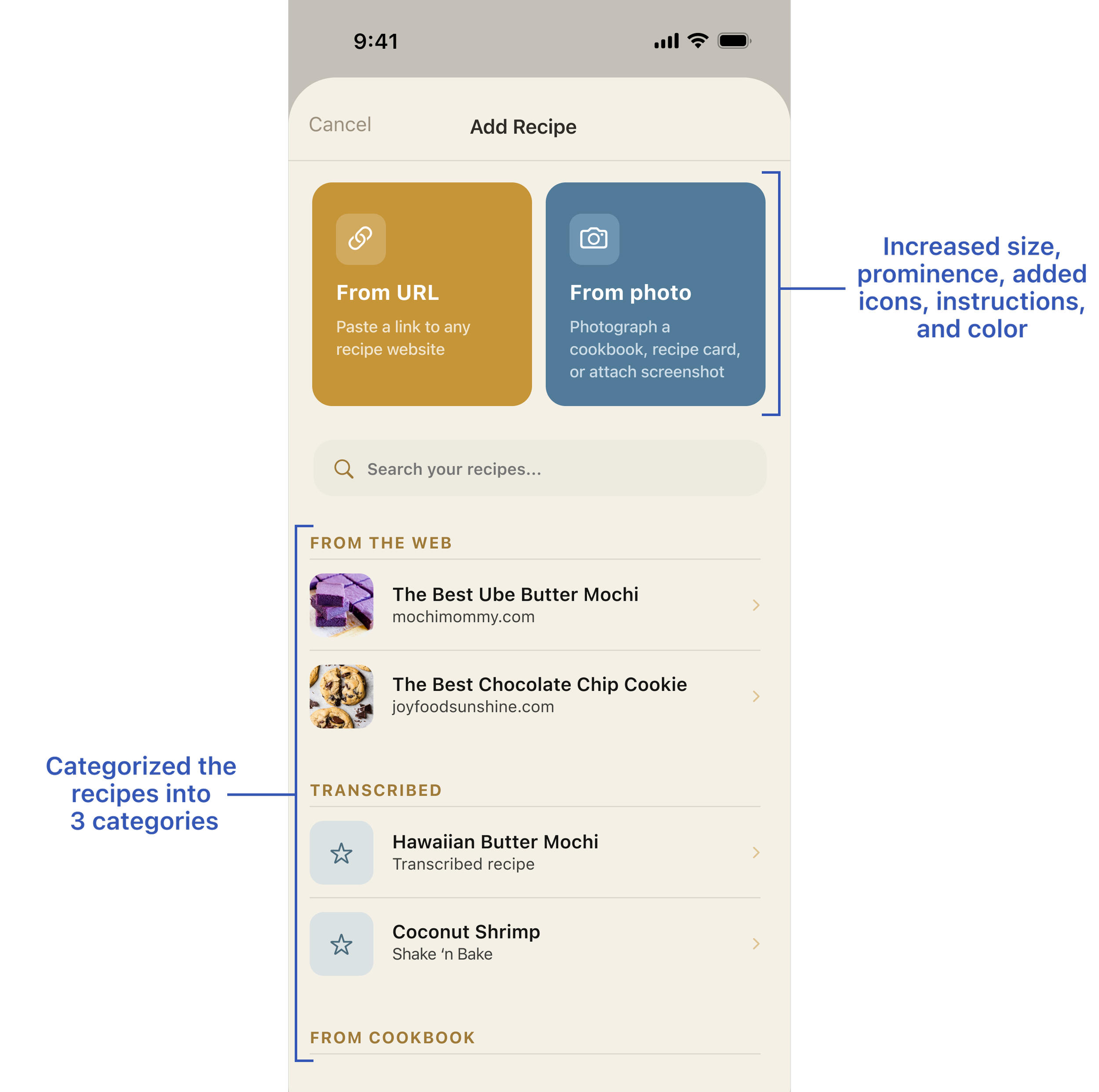
In order to make the options to attach a recipe more prominent, I turned the two options into colored boxes that now contain an icon, and a line of instruction for the user.
The issue with the disorganized list of recipes was solved by implementing a simple category system: digital recipes from the internet, transcribed recipes from screenshots or packaging, and finally, physical cookbook recipes.
Profile Screen Solution
Old profile screen
New profile screen
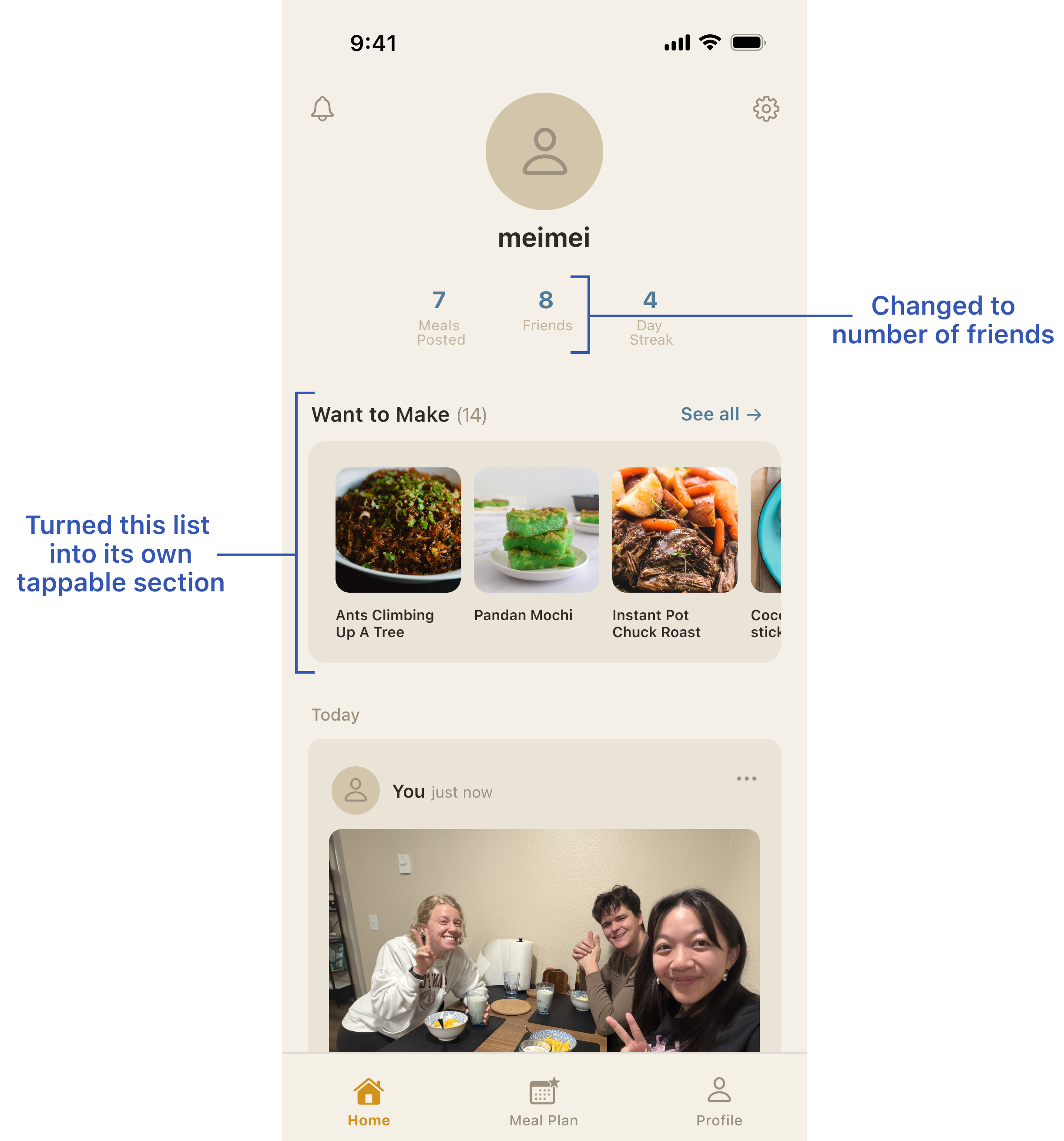
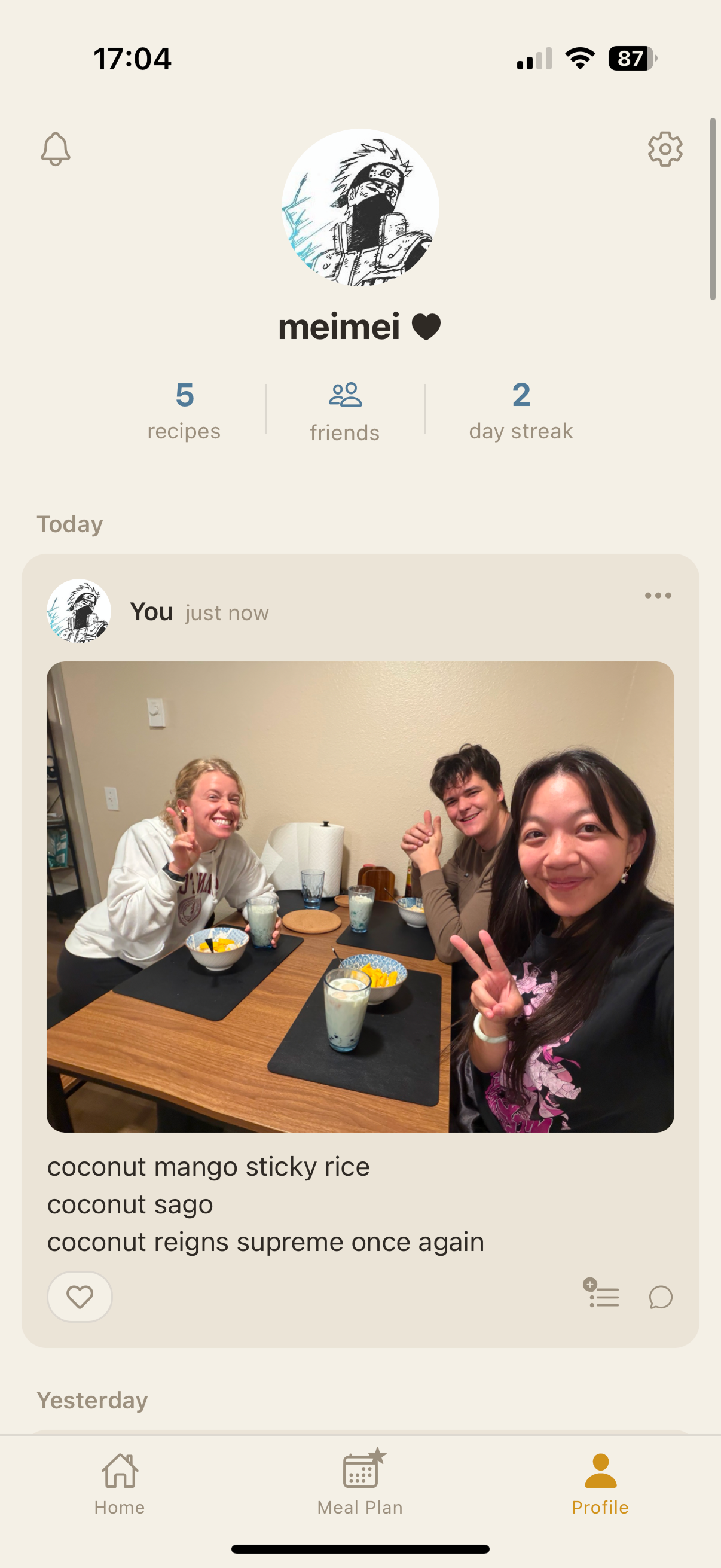
The 3 stats in the old profile page were not very intuitive. Does 5 recipes mean I’ve only posted 5 times? Or that I’ve saved 5 recipes? Why is the friends stat just an icon as opposed to a number?
In my solution, I created a new section: a Want to Make list. This will be the place where saved recipes go. If you see a friend post a recipe you want to try, you add it to this list, and access it through the Meal Plan tab as well as the Profile tab.
I also turned the Recipes stat into Meals Posted, and turned the friends icon into a number instead.
This project is actively ongoing. Several additional design proposals are currently in discussion with the developer, and further iterations will be informed by real user feedback as the app continues to grow its beta user base! The work shown here represents the first round of shipped improvements.